Tuesday, June 10, 2014

MOSS 2007 sitecollections locked

Well, yesterday morning , none of our MOSS 2007 users were able to do anything on our MOSS 2007 web applications.  I checked my Content DB & Config DB whether it is set to read-only , but it is not. I checked for Quiescing , but it is not.

Finally used control point and , found that all the Site collections were set to read only. Due to the urgency of the situation I executed this script to unlock more than 2000 site collections one by one.
stsadm -o setsitelock -url <URL name> -lock {none | noadditions | readonly | noaccess}

Prior to executing this script, I used stsadm -o enumsites -url <URL name> and stored the url in a file.

Does anyone have a comprehensive script , which can iterate through the Site collections to unlock it , using stsadm? I am now investigating how site collections got locked. Any suggestions?

Friday, May 23, 2014

Excel Web App - An error occured

Users were trying to open the Excel files using Excel Web App in my SharePoint 2010 farm. They were getting "An error occurred Please try again" error dialog.


Also some of the users were not able to see the Indicators of Indicator Details web part. They were getting "An Error Occurred" against each indicator.  I checked all the settings Excel Services and finally found that the "Excel Calculation Service" was stopped. Once it is started, users were able to open excel files and Indicators started showing up. Hope this information is useful for you. 

Monday, May 5, 2014

Restoring a site collection in SharePoint 2010

I was trying to restore a site collection in a web application. I usually create a site collection manually and then restore it using Restore -SPSite command with Force option. Today I wanted to try with out creating a site collection manually and by executing the Restore-SPSite http://server_name/sites/site_name -Path \\file_server\share\site_name.bak powershell command

It worked and i was able to see a site collection was created!!!

Wednesday, April 16, 2014

Excel Add-in that can publish and sync Excel tables to SharePoint (2007/2010/2013/O365) Lists

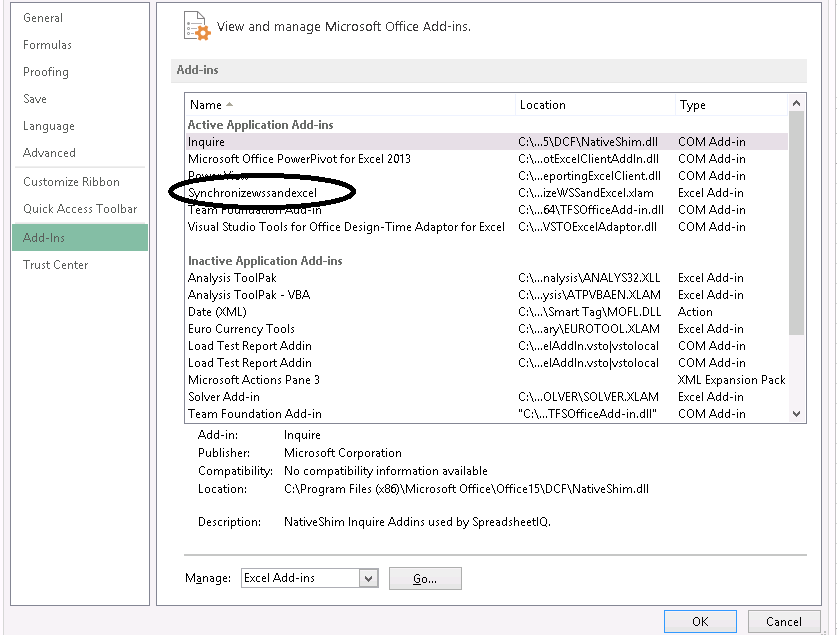
I have some project tracking related information on my excel worksheet and i wanted to store that in a SharePoint List. I wanted to find out any Add-in available in Excel, which will upload the data into SharePoint and synchronizes it in. I browsed and found that  WSSandExcel (SynchorinizeWSSandExcel.xlam) Add-in helps in synchronizing Excel tables with SharePoint Lists on SharePoint 2010/2013 and Office 365.

This was originally built for Excel 2007 for WSS/Moss 2007, but the good news is,  it works well for SharePoint 2010, SharePoint 2013 and O365 

You can download the plug-in from here. Follow the installation instructions given in that page.

How to use this Add-in with Excel 2013.

Spin up the Excel 2013(The usage will be similar for Excel 2007/2010.). Choose this Add-in under options -> Add-ins. You have to enable the Macros for the Add-ins to work.

How to Publish an Excel table in SharePoint 2010/2013/O365.

Step1: Create a table of data in a worksheet and click on Design tab. You can see "Publish and Sync" in the menu bar appearing after installing the Add-in. This is only to create a SharePoint List.
Step 2: Click on that  will bring a dialog box "Export Table to R/W SharePoint List". For O365 SharePoint do not forget to enter "Description" , other wise the Add-In will fail. 
Fill out the details and click on publish. For O365 based SharePoint lists you will be prompted for credentials. 
Go to your site and check the Add-in would have created the SharePoint List. 

How to use this Add-in to Sync data from SharePoint to Excel and Vice Versa.

After adding a List Item, go the excel worksheet -> right click on the Table data -> Table >Click on Synchronize with SharePoint. You can see the newly added/edited list item in your excel table.
You can also add/edit items in the excel table and synchronize with SharePoint by following the same procedure given above. This Add-in greatly helps in quickly creating a SharePoint List , but there are some limitations as well. 

Saving the Excel.

The Excel sheet has to be saved as in Excel 97 – 2003 Workbook(*.xls) format. If you save it other formats, you will not be able to sync the list items as "Synchronize with SharePoint" option will not appear.


Limitations of this  Add-in.

  1. Enabling  Macros
  2. It will not work for O365 , if List description is empty(Step 2)
  3. Excel Workbook has to be saved as in Excel 97 – 2003 Workbook(*.xls) format.
  4. SharePoint Specific columns like Person/Group Column, Managed Metadata, Lookup etc., cannot be created.
  5. Not a complete business solution.


I hope this post is helps you.

Saturday, April 12, 2014

Office 365, Sharepoint Online and SharePoint 2013 on-prime feature comparison


My client is now pursuing options for migrating to O365 and wants to have a hybrid model for the
SharePoint Environments. I was looking for detailed descriptions of the services and features and I found this link . Andrew Connell's excel sheet was also helpful for us.


I am sure this would help you to understand the difference in feature offerings available for O365, SharePoint Online and SharePoint 2013 on-prime.


Monday, March 31, 2014

SharePoint WebApplication not provisioned in SharePoint WFE's

I tried to provision a SharePoint Web-application in Application Server , but they were not provisioned in WFE's. I got "Page Cannot be Displayed" error and the web application was provisioned only in SharePoint Application Server.

I tried multiple things and finally found the reason for it. In the Application server, where the central admin is hosted, bring up the IIS. Locate the central admin application pool , right click ->Advanced Settings->under process model->Shut down Time Limit -> Set it to 600 mins-> Restart the IIS.

Delete the SharePoint Web-application that has been created in Application server and then try recreating the SharePoint Web-application. Wait for some time, you will be able to see the Web-application provisioned in WFE's

This error is might be due to CPU utilization and please check your CPU utilization and up the core's if needed. 

Wednesday, March 12, 2014

Managed Metadata column did not display values

In a SharePoint 2010 farm, my business users are not able to see the values of a Managed Metadata column. Users with contribute access were able to see the values in "AddNewForm.aspx" and "EditForm.aspx". But the List view is not showing the values.


I did some research and did the following.
  • Browse to 'http://<URLforSiteCollection>/Lists/TaxonomyHiddenList' 
  • Give 'Read' permission to 'NT AUTHORITY\authenticated users'
Thanks to this Microsoft KB article.


Wednesday, March 5, 2014

The "BrowserFormWebPart" Web Part appears to be causing a problem.

We had this error when end users trying to open InfoPath Form attached to a SharePoint List. The problem seems to be some missing fields but we could not solve it.  Finally we found that one field has been removed recently, but the InfoPath form is not published.


Added that field back and published it. Problem got resolved !!!


Tuesday, August 20, 2013

Remove an user from item level permissions using JSON.

To delete a user from item level permissions using JSOM , use the following code.

var oUser= clientContext.get_web().ensureUser('your name@yourcompany.com');
oListItem.get_roleAssignments().getByPrincipal(oUser).deleteObject(); // oListItem- List item reference.

clientContext.load(oListItem);

Happy coding !!!

Wednesday, August 7, 2013

All In One Script Framework

All in one script framework has many sample power shell scripts for automation which are scenario focused. It has sample scripts for Office, Office 365, SharePoint, SQL Server, Exchange and Lync.

Please visit the site , you can request for scripts, provide feedback as well.