Friday, July 11, 2014

MyContent Link is missing/not visible in My Site

One of my user reported that he is not able to see the My Content link in his MySite.


All my users were able to see My Content link , but this user was not. Out of curiosity I checked the following

1) Central Admin -> Application management -> My site web application -> Self service site creation - It was enabled.
2) Central Administration->Application management -> Select User Profile Service ->MySite Settings-> All the configurations (My Site Host, Personal Site Location, Site Naming Format, Read Permission Level, Security Trimming Options etc) are correct.
3) Central Administration->Application management -> Select User Profile Service ->People->Manage User Permissions -> Added the user -> Enabled permissions for User personal features, Create personal site, Use social features. Now the user was able to see the My Content link and clicking on it created his personal site.

In my organisation , instead of enabling "User personal features, Create personal site, Use social features" for employees individually we created an AD group and enabled aforementioned permissions to that AD group. Finally I added the user who reported this error into that AD group which solved the problem.

Hope this helps for you as well!!!


Wednesday, June 25, 2014

How to enable SharePoint Library "Open in explorer"

To resolve this please do the following steps.

1) Open the “Service.msc” (Press Windows + R Enter Service.msc)2)  Search “WebClient” -> right click -> Properties -> Set Startup Type Properties to Automatic and start the service
3) Restart the System.
4) Browse SharePoint Library and you should be able to use "Open with explorer" option.

Friday, June 20, 2014

Microsoft SharePoint Word Web App - Unable to open word files in client

When I tried opening word documents from a SharePoint library it was opening in in WebApps. When ti tried to open in word it was throwing a following error.
I thought something is wrong in my workstation. Then I found that I was using 64bit IE and switched to 32 bit IE. I am now able to open word documents using 32 bit IE. Wondering what could be the reason? Can any one help me?

Wednesday, June 18, 2014

Unable to display this web part error.To troubleshoot the problem, open this Web page in a Microsoft SharePoint Designer

Me and my colleagues were getting this error "Unable to display this web part. To troubleshoot the problem , open this page in ......" on a particular web application.

I analyzed and found that this is due to XSLT error. As I have to fix this issue quickly ,  I stopped the web application and started it again. The problem is gone but I was not happy with the way I handled this issue. 

Hence I analyzed further and found that I need to increase the XSLT transformation time out. I wanted to check the default time for XSLTTransformtimeout in my farm , and by using the following powershell command I found that it was set to 1.  

$farm = Get-SPFarm
$farm.XSLTTransformTimeout

As a precautionary measure, I increased the XSLTTranfromtimeout to 5 and till now the problem did not occur. 

$farm = Get-SPFarm
$farm.XSLTTransformTimeout =5
$farm.Update()

Now I have to check in the forthcomingdays, if this problem will be shown again or not. Do you recommend that this fix will work?. Please help me with your suggestions.


FYI: XSLTTransformTimeout property is available with the Feb 2012 CU for SharePoint 2010 Server. 


Tuesday, June 17, 2014

How to delete users from UserInformation hidden List

Today, one of the user reported that he has re-joined the company , and he is not able to access any of the SharePoint sites. The site-collection owner gave permission to this user , using the old identity, because the people picker will show identities from UserInformation List(hidden list)

As you know SharePoint maintains a hidden list called UserInformation list to store identities located at http://<SiteCollectionUrl>/_catalogs/users/detail.aspx . I used the following power-shell script , just to refresh his identity in User Information List. It did not work.

$web=Get-SPWeb "http://ABC.com/sites/XYZ"
$web|Set-SPUser -identity "Domain\UserID" -SyncFromAD

After further digging, I found a way to delete the user's old identity from the  UserInformation List. Here are they.

1) Choose any  SharePoint groups in the Sitecollection. It will route to the following URL(http://<SiteCollectionUrl>/_layouts/people.aspx?MembershipGroupId=XXXXX)
2) Replace XXXXX with 0.
3) You should be able to see all the users
4) Delete the user whom you want to delete

After performing these steps , now the UserInformation List shows the recent identity of the user and the user was able to access the SharePoint sites.

BTW: Does anyone have any Power Shell script to do this activity?

Monday, June 16, 2014

Increase SiteQuota SharePoint 2010

Yesterday , a site-collection administrator got an automated email from my SharePoint 2010 farm stating that "You are receiving this e-mail message because you are an administrator of the following SharePoint Web site, which has exceeded the warning level for storage".

I was notified of this email and I immediately accessed CA->Site Collection Quotas and Limits and bumped up the "Limit site storage" 20GB, but still the site-collection administrator was receiving the same email. Then I realized that I did not bump up the "Send warning email when site storage reaches" as the current storage was more than that.

Then after bumping up the "Send warning email when site storage reaches" value , the site-collection administrator was not getting reminder email. So the lesson for me is when you increase the "Site storage" make sure you also increase the warning email value as well


.


Tuesday, June 10, 2014

MOSS 2007 sitecollections locked

Well, yesterday morning , none of our MOSS 2007 users were able to do anything on our MOSS 2007 web applications.  I checked my Content DB & Config DB whether it is set to read-only , but it is not. I checked for Quiescing , but it is not.

Finally used control point and , found that all the Site collections were set to read only. Due to the urgency of the situation I executed this script to unlock more than 2000 site collections one by one.
stsadm -o setsitelock -url <URL name> -lock {none | noadditions | readonly | noaccess}

Prior to executing this script, I used stsadm -o enumsites -url <URL name> and stored the url in a file.

Does anyone have a comprehensive script , which can iterate through the Site collections to unlock it , using stsadm? I am now investigating how site collections got locked. Any suggestions?

Friday, May 23, 2014

Excel Web App - An error occured

Users were trying to open the Excel files using Excel Web App in my SharePoint 2010 farm. They were getting "An error occurred Please try again" error dialog.


Also some of the users were not able to see the Indicators of Indicator Details web part. They were getting "An Error Occurred" against each indicator.  I checked all the settings Excel Services and finally found that the "Excel Calculation Service" was stopped. Once it is started, users were able to open excel files and Indicators started showing up. Hope this information is useful for you. 

Monday, May 5, 2014

Restoring a site collection in SharePoint 2010

I was trying to restore a site collection in a web application. I usually create a site collection manually and then restore it using Restore -SPSite command with Force option. Today I wanted to try with out creating a site collection manually and by executing the Restore-SPSite http://server_name/sites/site_name -Path \\file_server\share\site_name.bak powershell command

It worked and i was able to see a site collection was created!!!

Wednesday, April 16, 2014

Excel Add-in that can publish and sync Excel tables to SharePoint (2007/2010/2013/O365) Lists

I have some project tracking related information on my excel worksheet and i wanted to store that in a SharePoint List. I wanted to find out any Add-in available in Excel, which will upload the data into SharePoint and synchronizes it in. I browsed and found that  WSSandExcel (SynchorinizeWSSandExcel.xlam) Add-in helps in synchronizing Excel tables with SharePoint Lists on SharePoint 2010/2013 and Office 365.

This was originally built for Excel 2007 for WSS/Moss 2007, but the good news is,  it works well for SharePoint 2010, SharePoint 2013 and O365 

You can download the plug-in from here. Follow the installation instructions given in that page.

How to use this Add-in with Excel 2013.

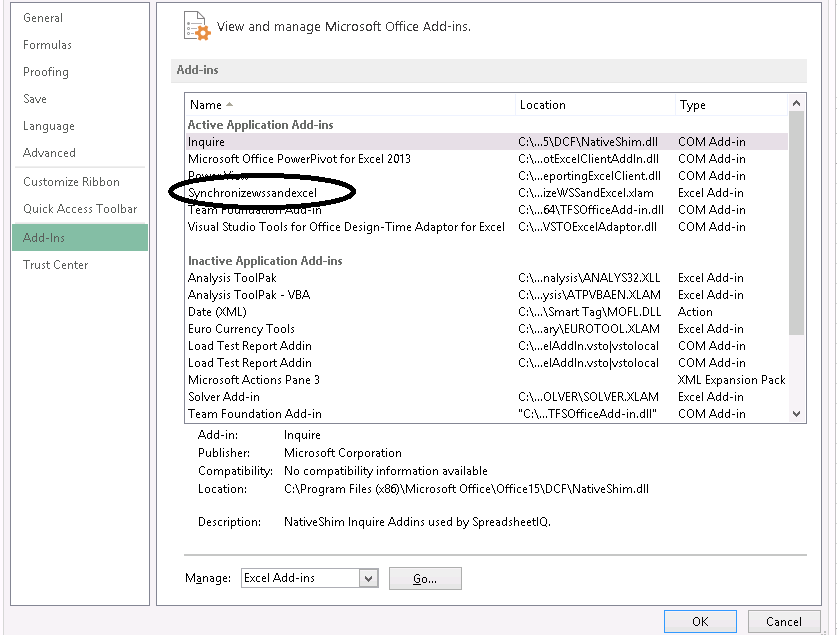
Spin up the Excel 2013(The usage will be similar for Excel 2007/2010.). Choose this Add-in under options -> Add-ins. You have to enable the Macros for the Add-ins to work.

How to Publish an Excel table in SharePoint 2010/2013/O365.

Step1: Create a table of data in a worksheet and click on Design tab. You can see "Publish and Sync" in the menu bar appearing after installing the Add-in. This is only to create a SharePoint List.
Step 2: Click on that  will bring a dialog box "Export Table to R/W SharePoint List". For O365 SharePoint do not forget to enter "Description" , other wise the Add-In will fail. 
Fill out the details and click on publish. For O365 based SharePoint lists you will be prompted for credentials. 
Go to your site and check the Add-in would have created the SharePoint List. 

How to use this Add-in to Sync data from SharePoint to Excel and Vice Versa.

After adding a List Item, go the excel worksheet -> right click on the Table data -> Table >Click on Synchronize with SharePoint. You can see the newly added/edited list item in your excel table.
You can also add/edit items in the excel table and synchronize with SharePoint by following the same procedure given above. This Add-in greatly helps in quickly creating a SharePoint List , but there are some limitations as well. 

Saving the Excel.

The Excel sheet has to be saved as in Excel 97 – 2003 Workbook(*.xls) format. If you save it other formats, you will not be able to sync the list items as "Synchronize with SharePoint" option will not appear.


Limitations of this  Add-in.

  1. Enabling  Macros
  2. It will not work for O365 , if List description is empty(Step 2)
  3. Excel Workbook has to be saved as in Excel 97 – 2003 Workbook(*.xls) format.
  4. SharePoint Specific columns like Person/Group Column, Managed Metadata, Lookup etc., cannot be created.
  5. Not a complete business solution.


I hope this post is helps you.